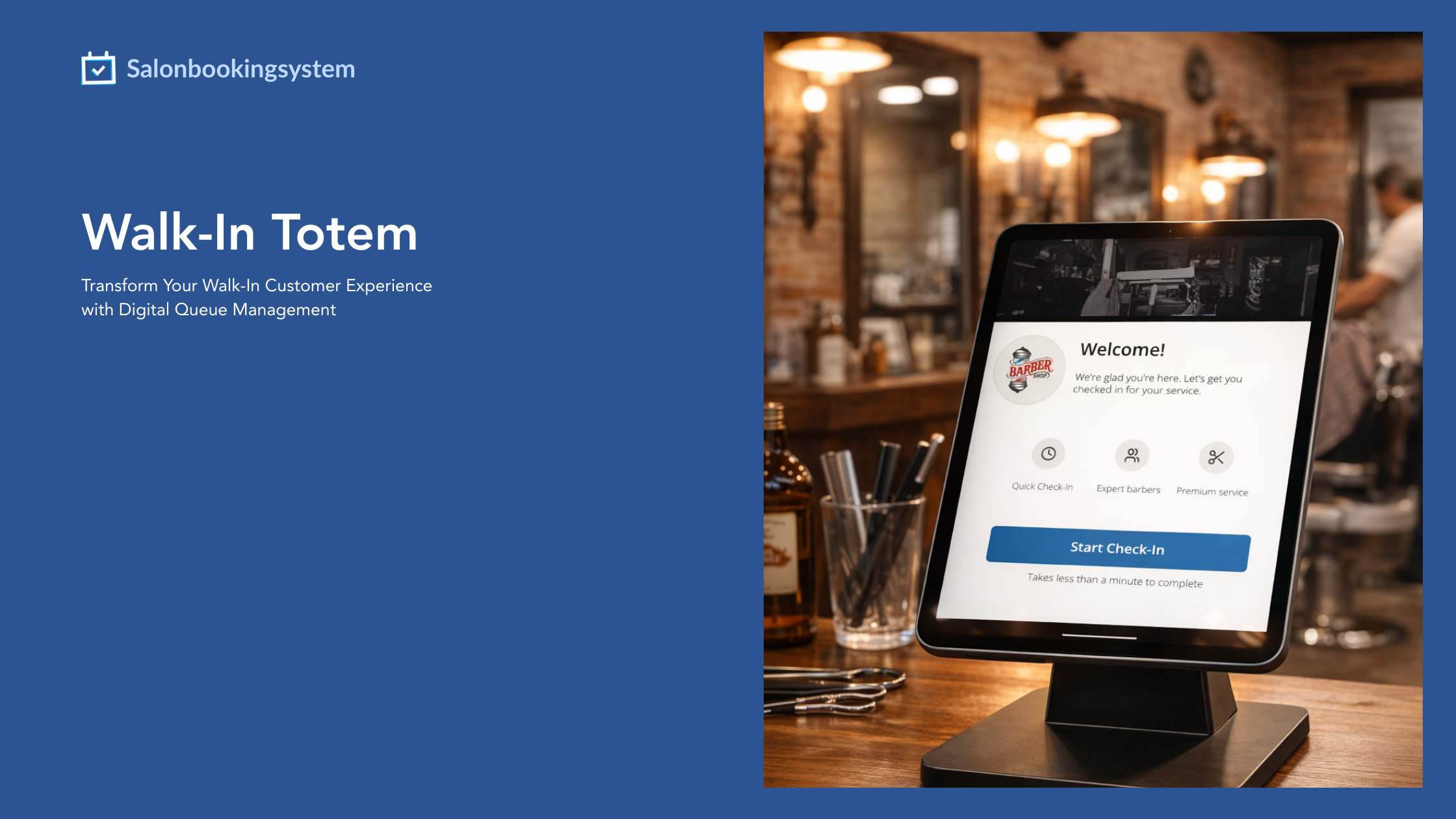
Transform Your Walk-In Customer Experience with Digital Queue Management
The Walk-In Totem Add-on is a comprehensive digital solution designed to modernize how your salon, spa, or beauty business manages walk-in customers. This powerful extension transforms any tablet or display device into a professional self-service check-in kiosk and queue management system, eliminating the chaos of traditional walk-in management and providing your customers with a transparent, organized waiting experience.
In today’s fast-paced service industry, customers expect efficiency and transparency. The Walk-In Totem Add-on delivers both by creating a seamless flow from the moment a customer walks through your door until they’re seated in your chair. Whether you’re managing a busy weekend rush or handling steady weekday traffic, this add-on ensures every walk-in customer receives professional service while optimizing your staff’s workflow.
Why Choose the Walk-In Totem Add-on?
Traditional walk-in management often leads to confusion, frustrated customers, and inefficient staff utilization. Customers don’t know how long they’ll wait, staff members lose track of who arrived first, and valuable time is wasted managing paper lists or verbal queues. The Walk-In Totem Add-on eliminates these pain points by digitizing your entire walk-in process.
This add-on integrates seamlessly with your existing Salon Booking System installation, creating a unified experience for both scheduled appointments and walk-in customers. Your staff gains complete visibility into the day’s schedule, combining pre-booked clients with walk-ins in a single, manageable queue. Customers receive accurate wait time estimates and transparent status updates, significantly improving their experience and reducing perceived wait times.
Complete Feature Set
Self-Service Check-In Kiosk
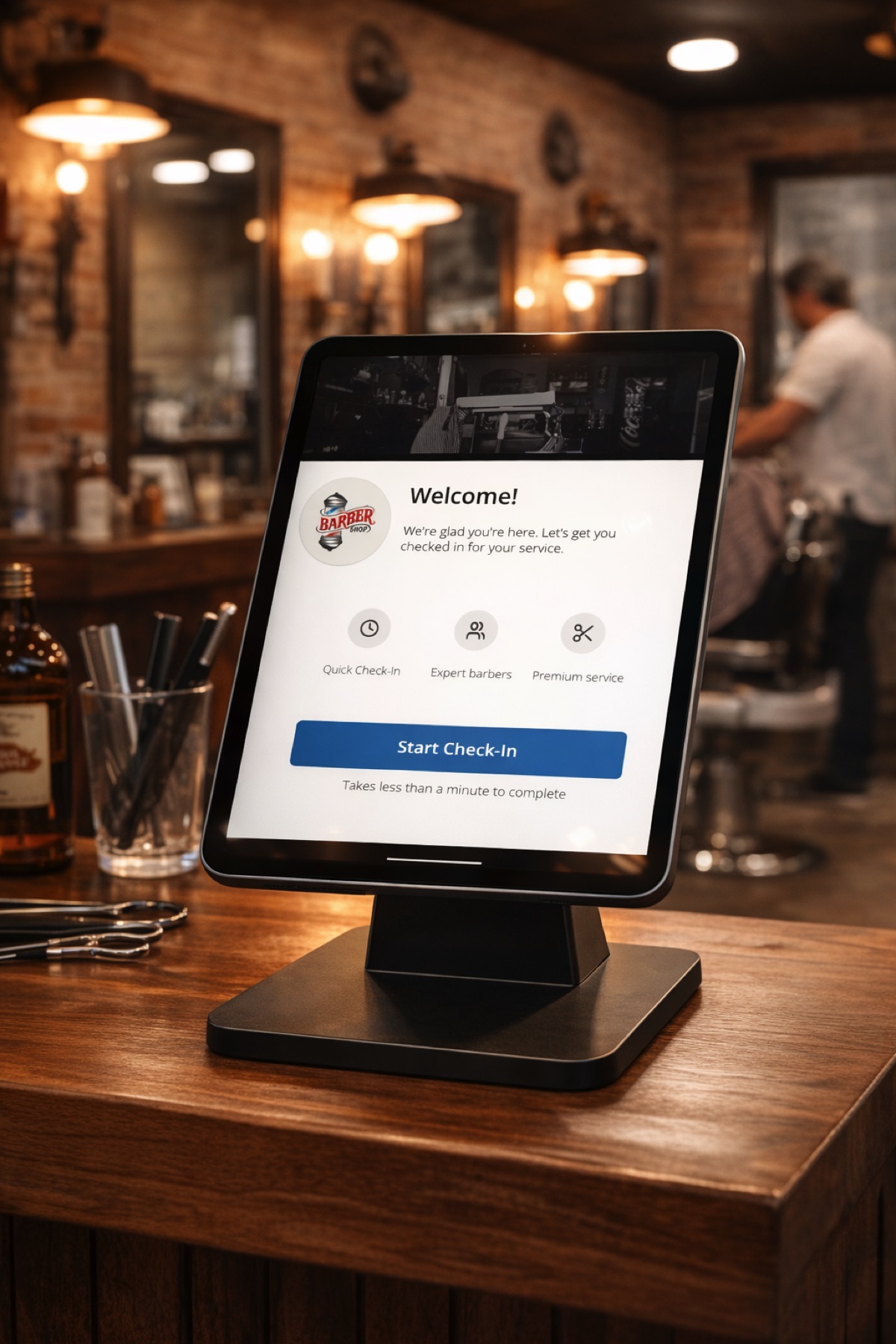
The heart of this add-on is its beautiful, intuitive check-in interface designed specifically for touch-screen devices. When customers arrive, they’re greeted by a welcoming screen that guides them through a simple three-step check-in process:
-
- Service Selection: Customers choose from available services displayed with clear icons, durations, and pricing
- Customer Information: Quick form to capture name, phone number, and optional email
- Confirmation: Instant confirmation with estimated wait time and queue position
The kiosk interface is fully responsive and optimized for tablets in both portrait and landscape orientations. The design is clean, professional, and branded to match your salon’s aesthetic with your logo and custom hero image. Large touch targets and clear visual feedback ensure customers of all ages can easily navigate the check-in process.
One innovative feature is the “Remember Me” toggle, which allows returning customers to save their information for faster check-ins on future visits. When enabled, the system creates a customer account that links their walk-in visits, building valuable customer history and enabling personalized service.
Public TV Monitor Display
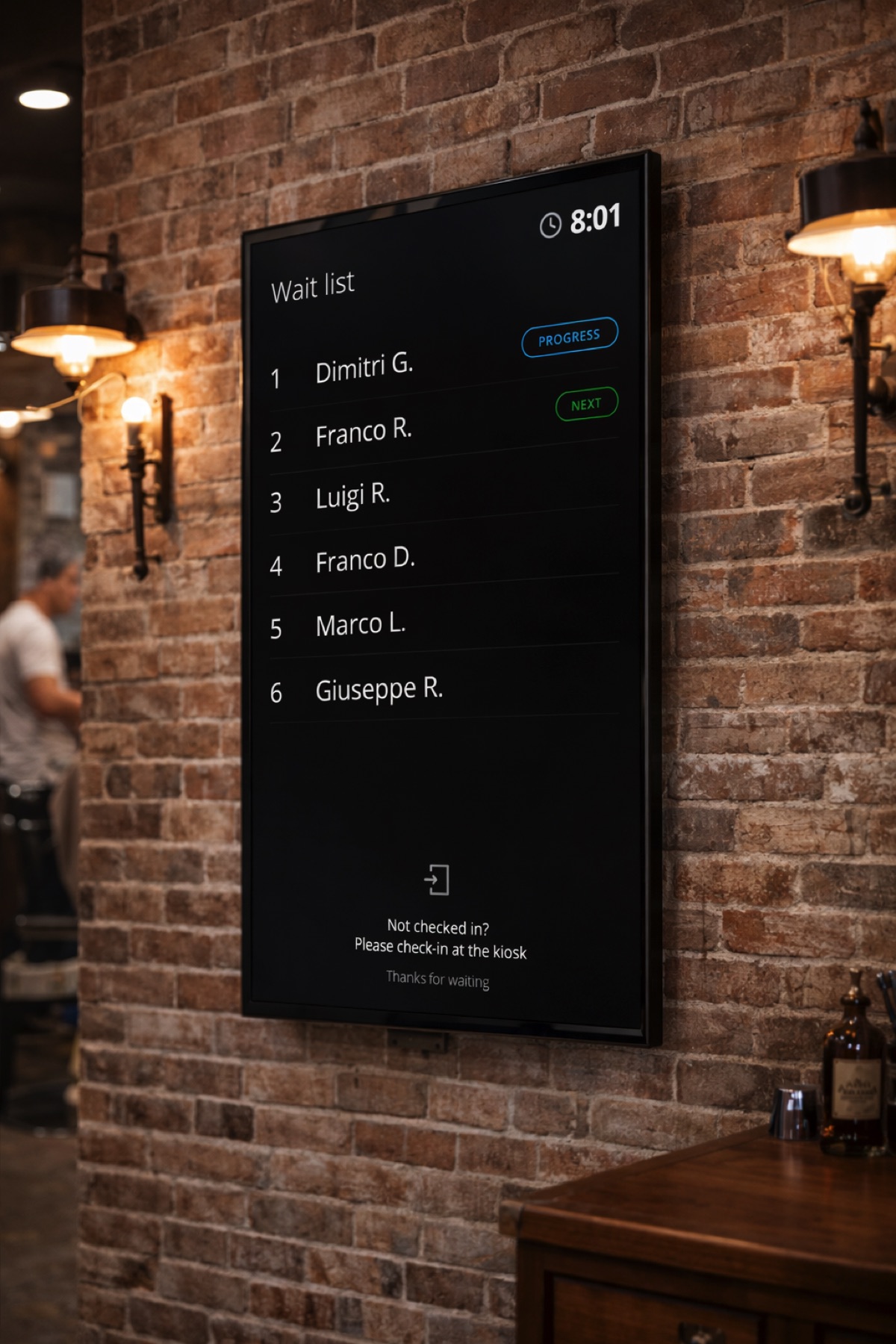
Keep your waiting area transparent and organized with the public monitor display. This feature turns any TV or display screen into a real-time queue board showing:
-
- Current queue position for each customer
- Customer first names (privacy-protected)
- Current status (Waiting, In Progress, or Next)
- Queue number for easy identification
- Professional, easy-to-read layout optimized for TV screens
The monitor automatically refreshes every 2 seconds, ensuring customers always see up-to-date information. This transparency reduces anxiety, minimizes “how much longer?” questions, and creates a professional atmosphere in your waiting area. Customers can glance at the display and instantly know their position and status.
Backend Queue Management
Your staff gains access to a powerful queue management dashboard directly within the WordPress admin panel. The queue page provides:
-
- Live Queue View: Real-time list of all waiting and in-progress walk-ins
- Quick Actions: Start service, mark complete, send SMS, or mark no-show with single clicks
- Customer Details: Access to customer information, service requested, and check-in time
- Today’s Statistics: Quick overview of total walk-ins, completed services, and no-shows
- Calendar Integration: Walk-ins appear in your main booking calendar alongside scheduled appointments
The interface is designed for speed and efficiency. Staff members can manage the entire queue without leaving the WordPress admin, and all actions update instantly across all connected devices—the queue page, calendar widget, and public monitor.
Calendar Widget Integration
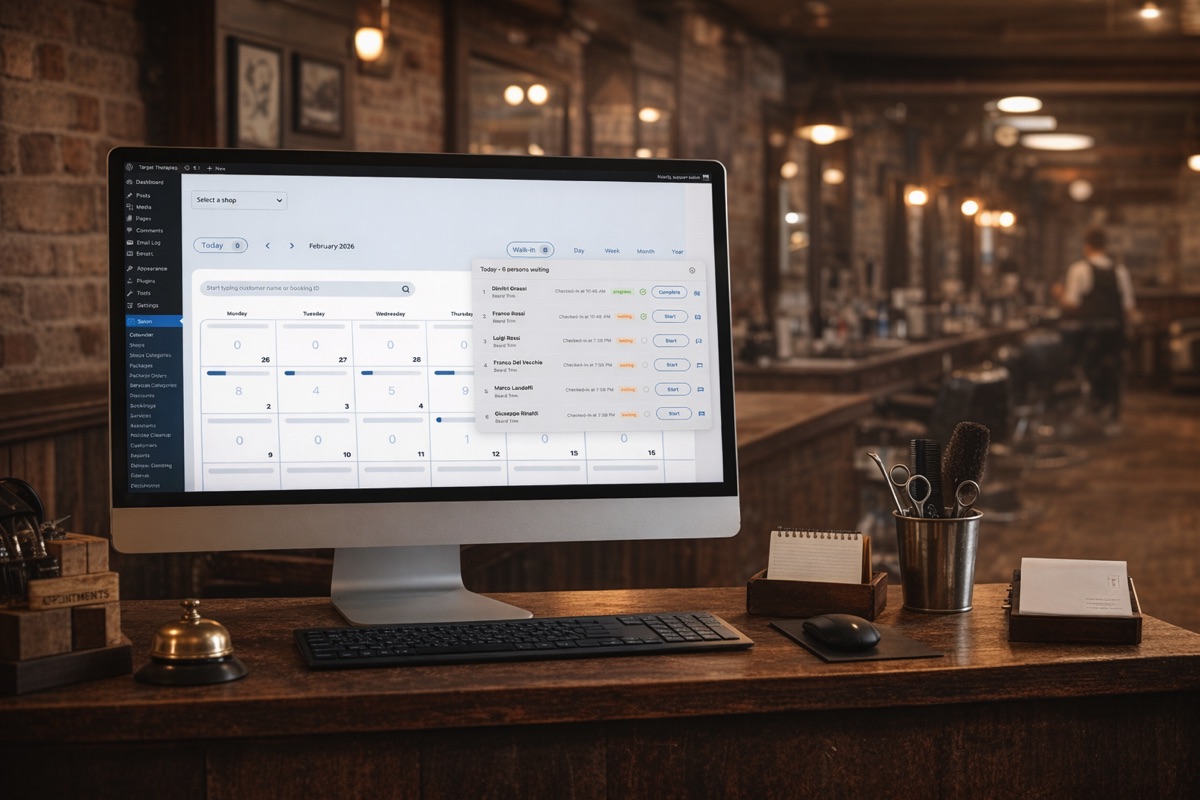
A compact, always-visible widget appears on your main booking calendar, showing the current walk-in queue at a glance. This widget:
-
- Displays active walk-ins with queue position, customer name, status, and check-in time
- Provides quick action buttons (Start, Complete, SMS) directly from the calendar
- Auto-opens when a new walk-in checks in, alerting staff immediately
- Matches the styling of your existing calendar interface for a cohesive experience
- Refreshes every 2 seconds for real-time updates
This widget ensures your staff never misses a walk-in customer, even when focused on the day’s scheduled appointments.
Intelligent Wait Time Calculation
The add-on features sophisticated wait time estimation that considers multiple factors:
-
- Number of customers ahead in queue
- Service durations for requested services
- Current queue velocity based on historical data
- Artist availability and capacity
The system learns from your salon’s actual performance data, analyzing past walk-in completion times to provide increasingly accurate estimates. Customers receive realistic wait times during check-in, and these estimates are recalculated dynamically as the queue progresses.
SMS Notifications
Reduce no-shows and improve customer experience with automated SMS notifications. When a customer’s turn is approaching, staff can send a customized SMS alert with a single click. The SMS system includes:
-
- Customizable Message Templates: Personalize the notification text to match your salon’s voice
- Automatic Placeholders: Insert customer first name and salon name automatically
- Character Counter: Real-time validation ensures messages stay within SMS limits (160 characters)
- Integration with Core SMS: Uses your existing Salon Booking System SMS settings and credits
Default notification: “Hi [Customer First Name], You’re up next! Please return to [Salon Name].”
This feature is perfect for customers who want to step out for coffee or run errands while waiting, transforming potential lost business into happy, notified customers who return right when you need them.
Artist Availability Management
Control which team members accept walk-ins with granular artist-level settings. For each staff member, you can:
-
- Enable or disable walk-in acceptance
- Ensure only available artists appear when determining wait times
- Balance walk-in load across your team
- Maintain control over scheduled vs. walk-in ratios
This prevents walk-ins from being assigned to artists who are fully booked with appointments or who are unavailable for walk-in service.
Service Filtering
Not all services are suitable for walk-ins. The add-on allows you to specify exactly which services appear in the check-in kiosk:
-
- Select from all your configured services
- Create a curated walk-in service menu
- Hide complex or time-intensive services that require appointments
- Provide clear options to customers without overwhelming them
Customer Account Creation
The “Remember Me” feature seamlessly converts walk-in guests into registered customers:
-
- Checks for existing customer accounts by email
- Links walk-ins to existing customer profiles automatically
- Creates new customer accounts when requested
- Builds customer visit history for personalized service
- Operates silently in the background—customers aren’t interrupted if account creation fails
This feature helps you build your customer database organically, turning first-time walk-ins into tracked, returning customers with complete visit history.
System Requirements
Required Software
-
- WordPress: Version 5.0 or higher
- PHP: Version 7.4 or higher
- Salon Booking System PRO: One of the following editions:
-
- Salon Booking System PAY Edition
- Salon Booking System CodeCanyon Edition (CC)
- Salon Booking System Special Edition (SE)
-
Important: The Walk-In Totem Add-on requires a PRO version of Salon Booking System. The free version does not support add-ons.
Recommended Hardware
For Check-In Kiosk:
-
- Tablet: 10″ or larger (iPad, Samsung Galaxy Tab, or similar)
- Touch screen capability
- WiFi connectivity
- Tablet stand or wall mount
- Portrait or landscape orientation support
For Public Monitor:
-
- TV or display screen: 32″ or larger recommended
- HDMI-capable device (Raspberry Pi, Fire TV Stick, Chromecast, or dedicated PC)
- WiFi connectivity
- Wall mount or stand positioned in waiting area
For Staff Management:
-
- Any computer or tablet with modern web browser
- Internet connection
- Compatible with Chrome, Firefox, Safari, and Edge
SMS Requirements (Optional)
To use SMS notifications, you’ll need:
-
- Salon Booking System SMS credits or integration configured
- SMS gateway settings configured in Salon Booking System
- Valid phone numbers for customers
Installation Guide
Step 1: Download the Add-on
After purchasing the Walk-In Totem Add-on:
-
- Log into your account at salonbookingsystem.com
- Navigate to your account dashboard or downloads section
- Locate “Salon Booking System – Walk-In Totem” in your purchased products
- Download the latest version (zip file)
Step 2: Install via WordPress Admin
Option A: Upload via WordPress Dashboard (Recommended)
-
- Log into your WordPress admin panel
- Navigate to Plugins → Add New
- Click the Upload Plugin button at the top of the page
- Click Choose File and select the downloaded zip file
- Click Install Now
- After installation completes, click Activate Plugin
Option B: Manual FTP Installation
-
- Unzip the downloaded file on your computer
- Connect to your WordPress site via FTP
- Navigate to
/wp-content/plugins/ - Upload the unzipped
sbs-walkin-totemfolder - Return to your WordPress admin → Plugins
- Find “Salon Booking System – Walk-In Totem” and click Activate
Step 3: Automatic Setup
Great news! Upon activation, the Walk-In Totem add-on automatically creates the required pages for you:
-
- After clicking Activate, you’ll be automatically redirected to the Walk-In Settings page
- You’ll see a success message confirming that two pages have been created:
-
- Walk-In Check-In page (for the kiosk device)
- Walk-In Monitor page (for the public TV display)
-
- Both pages are automatically configured with:
-
- The correct shortcodes (
[salon_walkin_kiosk]and[salon_walkin_monitor]) - Dedicated standalone page templates that bypass your theme
- Published status and ready to use
- The correct shortcodes (
-
The “Your totem devices pages” section at the top of the settings page displays links to edit or view these pages. If you accidentally delete either page, simply click the “Generate pages” button to recreate them.
Setup and Configuration
Step 1: Configure Add-on Settings
Navigate to Salon → Walk-In Settings to access the configuration page:
Upload Hero Image:
-
- Upload a welcoming image for the kiosk welcome screen
- Recommended: Interior photo of your salon or branded image
- Optimal size: 1200×600 pixels or larger
- Formats: JPG, PNG
- This image creates a warm, branded welcome experience for walk-in customers
Select Allowed Services:
-
- Choose which services should appear in the kiosk check-in form
- Use the drag-and-drop interface to move services between lists
- Only selected services will be shown to walk-in customers
- Consider limiting to services suitable for walk-ins (typically shorter duration services)
Customize SMS Message:
-
- Enter your custom SMS notification text
- Use
[firstname]placeholder for customer’s first name - Use
[shopname]placeholder for your salon name - Maximum 160 characters
- Character counter shows remaining characters with visual warnings
- Example: “Hi [firstname], you’re up next at [shopname]! Please head back.”
Click Save Settings when complete.
Step 2: Configure Artist Walk-In Availability
-
- Navigate to Salon → Assistants (or Team Members)
- Edit each team member’s profile
- Locate the Walk-In Settings section
- Check “Accept Walk-Ins” for artists who should receive walk-in customers
- Leave unchecked for artists who only handle scheduled appointments
- Save each artist’s settings
Step 3: Set Up Kiosk Device
Configure your check-in tablet using the automatically created page:
-
- Get Page URL: From Walk-In Settings, click “View page” next to “Kiosk page” to see the URL
- Open Browser: Launch Chrome, Safari, or your preferred browser on your tablet
- Navigate to Kiosk URL: Enter the kiosk page URL
- Login: The first time, you’ll need to log in with WordPress admin credentials
- Enable Kiosk Mode: Set browser to full-screen/kiosk mode:
-
- iPad/iOS: Add page to Home Screen for full-screen app-like experience
- Android: Use Chrome’s “Add to Home Screen” feature
- Desktop/PC: Press F11 for full-screen mode
-
- Disable Sleep: Configure device to stay awake (adjust display sleep settings)
- Test Check-In: Walk through the complete check-in process to verify functionality
Kiosk Placement Tips:
-
- Position near entrance at comfortable height
- Ensure good lighting (avoid glare on screen)
- Provide clear signage: “Please Check In Here”
- Consider securing device with stand or wall mount
- Ensure strong WiFi signal at location
Step 4: Set Up Monitor Display
Configure your public queue display using the automatically created page:
-
- Get Page URL: From Walk-In Settings, click “View page” next to “Totem page” to see the URL
- Connect display device (tablet, Fire TV Stick, Raspberry Pi, etc.) to TV via HDMI
- Open web browser on the device
- Navigate to the monitor page URL
- Login if required (or use a dedicated account)
- Set browser to full-screen mode
- Configure device to automatically open this URL on boot (optional)
- Disable screen sleep settings
The monitor will automatically refresh and display the live queue.
Monitor Placement Tips:
-
- Position where all waiting customers can easily see it
- Avoid direct sunlight causing glare
- Height should allow comfortable viewing from seating area
- Consider using a dedicated streaming device for reliability
Step 5: Train Your Staff
Ensure your team understands the new workflow:
-
- Show staff the Walk-In Queue page (Salon → Walk-In Queue)
- Demonstrate how walk-ins appear in the Calendar Widget on the main calendar
- Explain the action buttons: Start, Complete, SMS, No-Show
- Review how to send SMS notifications when customers step out
- Explain how walk-ins integrate with scheduled appointments
- Set expectations for response time to new check-ins
Workflow Best Practices:
-
- Acknowledge new walk-ins within 2-3 minutes of check-in
- Use SMS feature when wait times exceed 15-20 minutes
- Mark “No-Show” for customers who leave without service
- Keep queue moving by marking services complete promptly
- Review daily statistics to optimize staffing
Getting Started
Once configured, your walk-in management system is ready to use:
-
- Customers: Direct arriving walk-in customers to the kiosk to check in
- Staff: Monitor the queue via the Calendar Widget or Walk-In Queue page
- Waiting Area: Display the monitor for customer transparency
- Actions: Manage queue with quick action buttons as customers are served
- Analysis: Review daily walk-in statistics to optimize operations
The Walk-In Totem Add-on transforms walk-in management from a source of chaos into a streamlined, professional process that improves customer satisfaction and staff efficiency. Your customers receive transparency and accurate wait times, while your staff gains complete control and visibility over the day’s flow.
Welcome to the future of walk-in customer management.
Need Help?
Visit our support documentation at salonbookingsystem.com/docs or contact our support team for assistance with installation, configuration, or troubleshooting.